The Track Lock Button only locks the content on the Track (the Regions), not the value of the individual controls like Volume, Pan, etc.
Using Track Automation kind of locks the values of those parameters, not to a specific value, but to any values based on the Automation Curve you create on that Track for those individual parameters.
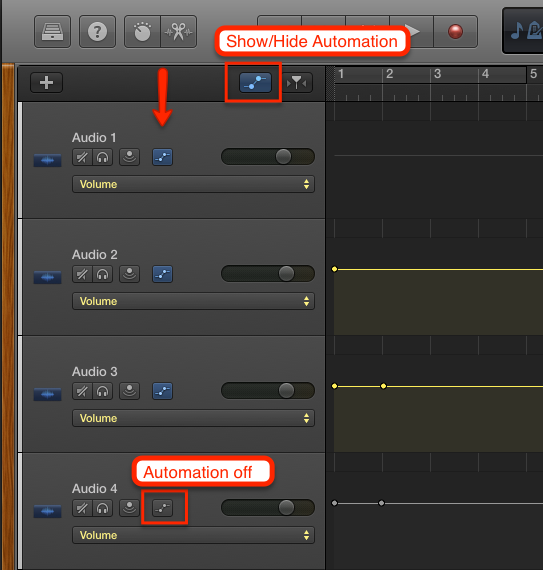
To create/edit Automation, you have to make the Automation controls visible with the Show/Hide Automation Button on top. This has no effect on the Automation, it only determines if you see them or not.
In the screenshot below I have four Audio Tracks to demonstrate the behavior. All four Tracks have the Automation Parameter "Volume" selected. That means the Automation Lane to the right shows the Automation Curve for the Volume parameter.
- Audio 1: THe Automation Curve is a straight gray line. That means, there is no Automation programmed yet, and the line moves up/down when you move the Volume Slider.
- Audio 2: The Automation Curve has one dot, called an Automation Control Point. Now you have technically created an Automation Curve, but as long there is only a single Control Point defined, the Automation Curve will still be controlled only by the Volume Slider.
- Audio 3: Once you have at least two Control Points defined, then that parameter (Volume in this example) will be controlled by the Automation Curve and not the Volume Slider anymore. This lets you "lock" the value to those values defined by the Automation Curve.
- Audio 4: Pleas pay attention to the blue Automation On/Off Button. It is enabled by default. If you disable it, you turn Automation off (bypass) for that Track. This will "unlock" the Automation and you can control it again will the Volume Slider (until you enable it again by presing the button). The Automation Curve will be gray.
Hope that helps
Edgar Rothermich - LogicProGEM.com
(Author of the "Graphically Enhanced Manuals")
http://DingDingMusic.com/Manuals/
'I may receive some form of compensation, financial or otherwise, from my recommendation or link.'